Getting Started
Logging onto Tahoma
The Tahoma HPC system can be accessed via ssh and Open OnDemand.
SSH
To access Tahoma via ssh, you will need to install smallstep CLI on your local machine. The smallstep CLI is available for Windows, MacOS and Linux. Once the software is installed you will need to bootstrap the smallstep CLI with our EMSL smallstep server. Instructions are below:
(prerequisite) ensure ssh-agent is running on your local machine. If you are using Windows, you will need to install the OpenSSH client and enable the ssh-agent service. If you are using MacOS or Linux, the ssh-agent should be running by default.
echo $SSH_AGENT_PID $SSH_AUTH_SOCK
If you don’t see a pid and socket details, start
ssh-agenteval $(ssh-agent)
Install the smallstep CLI on your local machine. The smallstep CLI is available for Windows, MacOS and Linux. Instructions are available at: https://smallstep.com/docs/step-cli/installation/
Bootstrap the smallstep CLI with the EMSL smallstep server
step ca bootstrap \
  --context emsl \
  --ca-url https://step.emsl.pnnl.gov \
  --fingerprint f73f8baa4401b33ecc2034febbaa9cec5f5b63278224f9e7e92062201b20d7fc
Request ssh certificates from the EMSL smallstep server:
Insert your YubiKey into your local machine.
step ssh loginYou will be sent to a webpage to authenticate with your PNNL certificate on your YubiKey. Select
Entra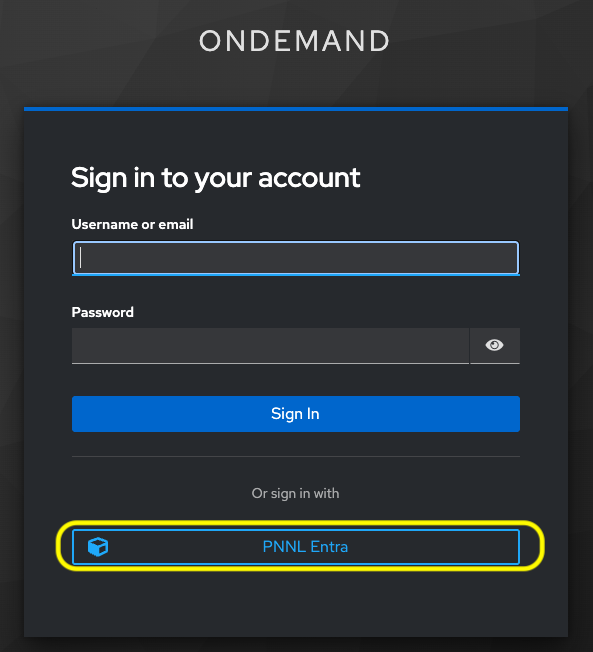
Select the PNNL Certificate, enter the PIN, and select
OK
(optional) Configure ssh client to trust CA
This will alter your ssh configs. This adds automatic logins and trusting of root certificates from EMSL.
Without running this command, when users ssh to a host, they will be presented with the fingerprint acceptance for the first time, because the fingerprint is for step.
With running this command, the ssh client will trust the root certificate from EMSL and will not prompt for fingerprint acceptance, it will simply automatically initiate the ssh connection.
step ssh config
SSH to Tahoma:
ssh -X your_userid@tahoma.emsl.pnnl.gov
If your certificate with the server has expired, you will need to first
step ssh loginand thenssh -X your_userid@tahoma.emsl.pnnl.gov. Then you will be able to ssh to Tahoma without any of the above commands until the next time the certificate expires.
OnDemand
Users can access Tahoma via the Open OnDemand web interface. OpenOnDemand is a web-based interface that allows users to access HPC resources without needing to use the command line and instead interacting with the machine using web applications; such as Jupyter Notebook, RStudio, Desktop GUI, VSCode, and Shell.
See the section below for more information on using Open OnDemand.
Running Jobs on Tahoma
Tahoma is a batch scheduled environment managed by Slurm. For commonly used software such as:
NWChem
VASP
ADF
GAMESS
MOLPRO
etc.
We have pre-formed submission scripts that either interactively query you for the required input fields or take a prescribed set of arguments. These scripts then build the submission script and submit it for you.
To list the available submit scripts type:
ls /home/scicons/tahoma/bin/submit*
These scripts are outlined further in Available Science Applications.
Most of these scripts accept a -h or --help as an argument to give a
description of how to use them. When using the preformed submit scripts,
please be sure to run them from your /tahoma project directory. This is so
that output files land in the BeeGFS file system which has much higher
bandwidth and lower latency than the /home file system. It is also a good
idea to have the input files (if needed) in the /tahoma file system.
Running jobs are subject to the limits set within our Job Policy.
Project Account Names on Tahoma
All of the above pre-formed scripts and when you build your own you need to specify which project account is to be used. To see which project accounts you are permitted to run under, type:
gbalance
This will produce a list of the projects you may run under as well as the node hours used and remaining in the project. In the non-header lines of the output, the characters up to the first blank are the project name. If you are building your own submission scripts you will need to define the project in your scheduler directives:
#SLURM --account 'project'
Writing a Batch Script
If you are creating your own submission script, you submit them with the
sbatch command:
sbatch 'my_submission_script'
The scheduler will return the SLURM job ID or some error message if your
account is incorrect or the scheduler is not accepting jobs. When submitting
jobs, please run them from your /tahoma project directory.
More information is available at Job Scripts.